Posts

Showing posts with the label Office

Create a Tree View for Your Pages in Sharepoint

Image
Case: You have some pages in Sharepoint that you want to present as a tree due to the parent-child relationship between them. Requisites: Pages created in Sharepoint. Steps: Open each page and use the 'Promote' option: Click on 'Add page to navigation':   You will have all the pages shown in the navigation bar:   Edit the navigation bar and click '...', 'Make sub link' for the page that you want to be a child of the previous page in the navigation bar:   Repeat the steps until you see the structure you want and save it:   Results: The pages will look as parents and children in the navigation bar:  

Using Styles in Word

Image
If you have to change the style of a Word document (like changing the color of the headings), you can do it manually by editing each text or you can edit the style only once.   For this, the recommendation is to set a style for the headings you work with, highlight the heading and go to "Styles" and select the one you want. Do this for all your headings.   Later, if you want to customize the style (like changing color) you can right-click on the style you are using and select "Modify...". In the new window edit the color for this style or other properties. Once you accept the edition, this will apply to the headings with the same style.   You will be able to change the style of your document easily by editing the style and no each text.

Assigning Colors for Events in Outlook Calendar

Image
When you have many events in your Outlook calendar, it's useful to highlight them in different colors according to their categories.   It's possible to do this manually for each item, but you can set Outlook to do this automatically by right-clicking on an empty slot on the calendar and click on 'View Settings...'. In the new windows that appears, click on 'Conditional Formatting...'. The list of the rules already registered will be shown with the color assigned to each of them. Click on 'Add' and complete the field 'Name:' and select a color for this new rule. Then, click on 'Condition...'. There, you can set the filter for the events that will have the selected color by using different criteria.   Once the setting is finished Outlook will check each new item on the calendar to assign a color if it fits with the filters.

Changing the color of the text when replying email in Outlook

Image
If you use Microsoft Outlook in your computer, you should have this application configured to reply emails by using blue fonts (not black):   To change this, just go 'File' and select 'Options' on the left: Then, go to 'Mail' and click on 'Stationery and Fonts...': In the new window, you will have fonts configuration, select the one in the section 'Replying or forwarding messages' and set the fonts as you like:   Now, when you reply or forward an email you will use the font as you set it.

Using INDIRECT in Excel

Image
The INDIRECT function in Excel allows you to reference cells by typing the cell position (for instance: "B2"). To clarify this, look at the first example, you can see in the function bar that it's a direct reference.    In the following example, the indirect function is used with the parameter "D3" as text and brings the same result. Now, as the parameter of the indirect function is text, you can concatenate and build the cell reference by using other cells.      It's clear that using a direct reference (example 1) is better than using the indirect function, however, there are cases where is required to build functions dynamically depending on other values and the indirect function is a great tool to consider for these situations.

Why is the Delete Worksheet Option Disabled in Excel?

Image
In Excel you have to option to delete worksheets as soon as you realize that you don't need it anymore, this can be easily done by right-clicking on the tab you want to delete and select this action. However, sometimes you will see that this option is not enabled.     This option is disabled when the workbook is shared, so more people can collaborate to the file at the same time, this situation is shown in the title of the file, this will include '(Shared)'.     To disable the shared property of the workbook go to 'Review' ribbon and select 'Share Workbook' option.     Then, you will see the list of users that have the workbook open, once you uncheck the 'Allow changes by more than one user at the same time...' box and accept, the workbook will lose its shared property.    After this, you try again and notice that the 'Delete' option is enabled again and ready to use.      Consider that the 'Shared Workshee...

Preventing Excel File to Open or Edit with Password

Image
When you have an Excel file and don’t want everyone to open or edit it but only specific people then you could protect the file with a password. To do this, you have to use the ‘Save As...’ option and select ‘Browser’:   In the typical window to save the file, go to ‘Tools’ option and then select ‘General Options...’:   With that selection, you will be able to set a password that will be asked when opening or editing the file, without the right password the file will not open or edit:   This is the popup that will appear to anyone after setting the protection:   Also, you can use this option to set a recommendation when opening the file to use it as read-only, to do this just check the box ‘Recommend as read-only’ located under the password box, then when opening the file will always show this:      This read-only function can be used without setting a password.

Fixing Excel When Scrolling Sheet Instead of Moving Cell Selector

Image
When you have in Excel your cells like this:     And use the arrows on the keyboard to move to the right, for example, you will move the cell selector to the right cell:     However, I have seen that in some cases the result is not that, instead, when pressing the previous key the entire spreadsheet is scrolled to the right, with the cell selector staying in the same place:       This happens when the ‘Scroll Lock’ in pressed in the keyboard, then to fix it just press it again, but nowadays many keyboards have no this key, therefore, to fix this situation you should use the keyboard on screen, to open this keyboard in Windows go to ‘Start’ and search for ‘On-Screen Keyboard’, once you select it you will see this:   You see that the ‘Scroll Lock’ key is highlighted, click on it to disable this function and close the keyboard, now you recovered the usual behavior of the arrows keys in Excel.

Showing Pivot Table as Simple Table in Excel

Image
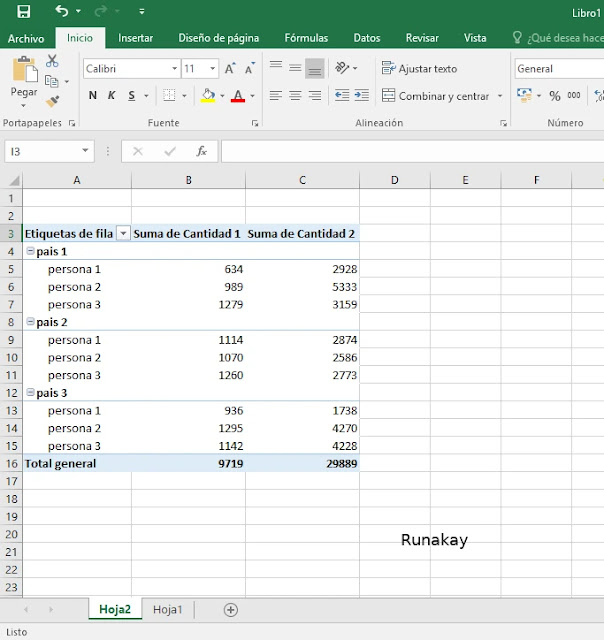
When you are working with pivot tables in Excel you see that they have a grouping scheme where one data of higher hierarchy is shown as a group header instead of being repeated for each row:       However, if you want to see it as a simple table (tabular table with data repetition for each row) you can do it keeping the pivot table properties by clicking on the table to enable the ‘Analyze’ and ‘Design’ tabs in the ribbon:      Then, go to ‘Design’ tab and under ‘Report Layout’ select ‘Show in Tabular Form’ option:     After that, your pivot table will be in a classical view (simple, tabular table):   Now, you will be able to manage this table as a tabular one, for example you can copy it to another sheet if you want to have the information but without grouping.

Avoiding to Mark as Read in Outlook by Accident

Image
When using Outlook , it offers a 'Reading Pane' function that allows you to read the selected email in the same window (not required to double click on it to open it). After this, the email is marked as read and you won't need to read it again, which is perfect. However, if you select accidentally an email this will be marked as read when you didn't want to read it, to avoid this you can avoid the 'Reading Pane' or you can change how this 'Mark as read' function works. To do the last one, go to 'File' and select 'Options'.   In 'Options', go to 'Mail' and then locate 'Outlook panes' section, click on 'Reading Pane...' and there you can disable the behavior explained before, it will require to open the mail with double click to mark it as read. Once you have this modified, you won't have more mails read by accident.

Disabling Always Appearing Research Window in Excel

Image
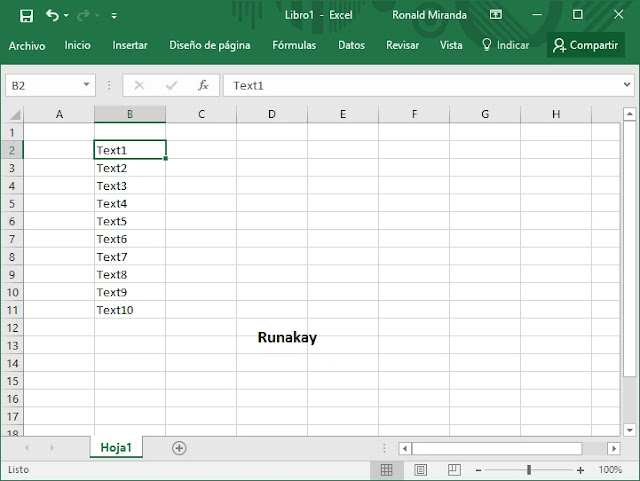
I have seen many cases when someone is working in Excel and have a set of text cells like shown below.      Everything is working normally, however, suddenly you start to have a problem when clicking your cells, now it's appearing the 'Research' window using the word in the selected cell.     And that happens with every click you do, you can close the window, but when you click in a cell again it appears anyway.     Now, you have to know that this window appears when you click on a cell while you are pressing 'Alt' or 'AltGr' key, therefore, if you are not pressing one of those keys probably they got stuck there. To fix it just press a few times your 'Alt' or 'AltGr' key until the 'Research' window doesn't appear anymore.

Selecting Monitor to Project PowerPoint Presentation

Image
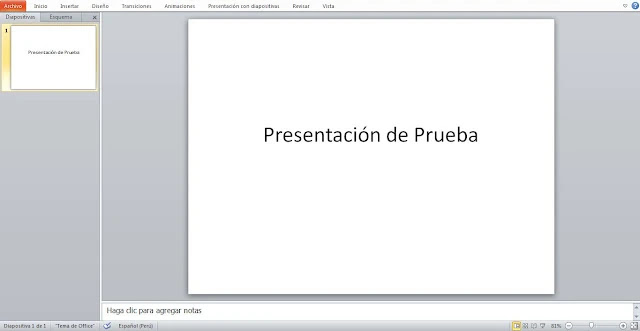
If you use PowerPoint to create presentations and you like the extended view when projecting your screen, then you probably have faced the problem with fullscreen PowerPoint presentation, when the presentation displays in your computer (only you can watch it) rathen than in the another screen (everyone can watch it). What you need to do is to select previously what screen you will to use to project the fullscreen projection, go to the "Slide Show" tab. Then go to "Monitors" section and pick the monitor you want for fullscreen projection on the "Show Presentation On". That's all, now the next fullscreen projection will be on the monitor everyone can see.

Recalling Outlook Message Once You Sent It

Image
Sometimes when you send a mail through Outlook and realizes that you want that mail back because you didn't mean to send it yet, there's an option. To recall a message you have to open the sent mail and go to 'Actions', then you have hit 'Recall This Message...'.   Once you use this option it's going to show a popup that will allow you to delete or replace the message. So, you have an ocassion to make things as you want.