Posts

Showing posts with the label PowerPoint

Use PowerPoint as a Concurrent-Editable Board

Image
Case: You need an online board where anyone can access at the same time and work on it, could be a Kanban board, SAFe Program/Team Board, User Story Map, Customer Journey Map and so on. However, you don't want to get an additional tool. Requisites: Internet access, PowerPoint and OneDrive or SharePoint . Steps: Create one slide and change its size according to your needs (Design > Slide Size > Custom Slide Size...): Edit the slide to have what you need before sharing it: Upload the file in OneDrive or SharePoint and share the link. Make the contributors access the file by using the app, as the browser version is limited: Results: Contributors will start working on the file concurrently and they will be able to see each other's modification, for example here the user MR in green is editing also the file:

Selecting Monitor to Project PowerPoint Presentation

Image
If you use PowerPoint to create presentations and you like the extended view when projecting your screen, then you probably have faced the problem with fullscreen PowerPoint presentation, when the presentation displays in your computer (only you can watch it) rathen than in the another screen (everyone can watch it). What you need to do is to select previously what screen you will to use to project the fullscreen projection, go to the "Slide Show" tab. Then go to "Monitors" section and pick the monitor you want for fullscreen projection on the "Show Presentation On". That's all, now the next fullscreen projection will be on the monitor everyone can see.

Resizing Images Without Distortion

Image
I work a lot with PowerPoint and this tool is perfect when you want to make a presentation because it's very useful to put images inside with ease. But many times when you copy an image an paste it in a slide it's not in the ideal size. Then you try to resize the image to get it ready for the presentation, for example, I copy this image, a print screen.     After that this image is pasted in the presentation. If you try to resize this image in PowerPoint you will realize that this application gives you free control about it, so if you are not careful with your movements you can distort the image.   Ok, to avoid this it's better to not have much control of the image so you need to lock the ratio aspect. To reach this just right-click on the image and select "Size and Position...".   And click on "Lock aspect ratio". Once you set that value you will notice that you can resize the image but maintaining...

Reducing the Size of PowerPoint Presentations

Image
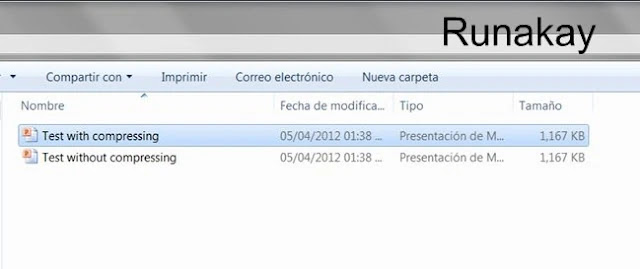
At work it's always required to make presentations in PowerPoint ... but sometimes these presentations have a considerable size that are needed to get smaller. And that is the reason of my next tip, which will help you with your big-sized presentations. I will use a PowerPoint file with 3 images on it and make a copy of it to prove that it's possible to reduce dramatically it size, let me show you the file itself and the 2 equal files that I have created.     Now, I will work with "Test with compressing" file to compress its images, because that's the key. The only thing you have to do is to select one image and go to "Compress Pictures" option which is located within "Picture Tools" ribbon.   Later, in the dialog box shown uncheck "Apply only to this picture" and pick "E-mail (96 ppi)", after that select "OK" button.   At this point the only thing that you have to do is to save you file and you wi...

Displaying Current Slide with PowerPoint

Image
At work I've always seen this situation: someone is giving a presentation with a ppt or pptx extension in full screen mode, when suddenly there's a person who request coming back to an specific slide. This is how the expositor takes a break and gets out of the full screen mode to select the given slide.     But, when it's time to display the full screen mode everybody uses the shortcut "F5" having as result the first slide of the presentation, so if the slide to be presented is 123 of 234 slides you will have to click next, next and more next. To avoid this annoying situation just locate on the slide you want to start from and use the shortcut "Shift + F5", in this way you are going to be where you want in full screen mode.