Posts

Exporting All Installed Applications in Windows

Image
When I helped someone to sell her laptop on internet I needed first to look at what applications were installed in this Windows 7. But, having this list in a file was not an easy task, therefore I searched on internet to get a way to do this. Finally, I used at that moment the command line " wmic " which also allows you to export this list in few formats, always remember first to open your command line window and type the command as shown in the image.     As you can see it's very simple just don't forget to specify the destination path and the format you want your output file (the options are: HTML , Table, XML and more). Once you got your file open it and you will see something like this. If you want to have this file in a more comfortable scheme just do what is said here and it will look like this.   Ready to be used.

Problem Copying Large Path Files

Image
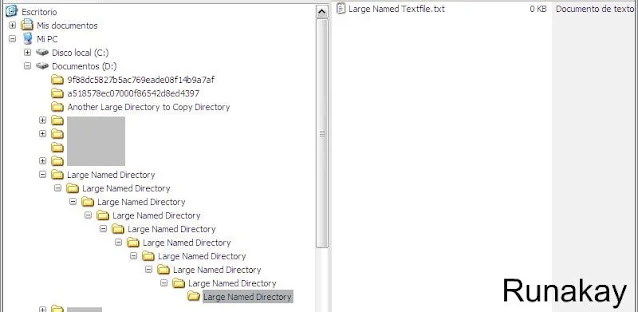
Some time ago I saw one problem as a consequence of a project, this consisted on moving all directories from one network device to an external drive as a backup policy. But, during the copying process happened problems with certain directories and files, an unknown error actually. However, I got the impression that this problem could be produced by the large length of the paths of this directories or files and yes, that was the reason. As a proof of this, I created a large path for a directory that just contains one text file, as you can see "D:\Large Named Directory" has a lot of similar inner directories, having the last one the "Large Named Textfile.txt" file. Pay attention, because it's not possible to create more directories inside the last one, because Windows has a limit... like everything in life.     Now, the image showed before represents the directories in the network drive, and we are going to copy them to a new directory located in the...

Speeding Up your Queries with XPath

Finally I'm posting again, the time has been very tough with me... but I'm here again with one subject that I was thinking to post long time ago. This is something that I found really curious when I was helping someone, this person asked me why in certain part of an stored procedure the programmer used the text() function to improve its execution time. Actually, I didn't have idea at that moment why that function gave that kind of benefit, I mean, we had this: CREATE PROCEDURE [dbo] . [SP_Test] @xml xml AS Insert    Into dbo . temp_table Select    Id1 =           D . Item . value ( 'Id1[1]' , 'bigint' ),          Id2 =           D . Item . value ( 'Id2[1]' , 'int' ),          Text1 =         D . Item . value ( 'Text1[1]' , 'varchar(...

Searching in Multiple Excel Tabs

Image
This is something that I hadn't realized until I helped a partner with an Excel, the problem was with the searching because the results were really unexpected, she selected just a column in the tab "Perú" but the searching dialog showed results from "Perú" and "Colombia" tabs, really curious, isn't it?. At that moment I thought "this could be very useful when you have a lot of tabs to search in!", so I will show you how to use it. As an example, I will use an Excel with many values corresponding each one to determined country, having at the same time many countries displayed as tabs. The aim of this searching is to find the value 4034220, for this I can use the search all option but I know that this value is only in non-spanish countries, so I just start selecting those country tabs, to do this just click on the tabs you want while pressing "Ctrl" key. As you can see, this tabs will be marked in white color. Once you ha...

Translating Words on Firefox "on fly"

Image
One advantage that Firefox brings with it it's the possibility of extending its functionality by using what is call add-on, a software component that added to your navigator will improve it a lot and help you many times. In this occasion let me show how gTranslate can give you a hand to translate those words that you don't know what they mean, without the need of visiting a specific web to accomplish this task. The first step is installing this add-on, this is very easy so just follow the link given in the earlier paragraph. If you have just already done this then it's time to use it, for this example I will translate an English text to Spanish so let's select the text.   At this point you need to right-click on the remarked text to display the gTranslate menu.   In this menu you will see the gTranslate icon with the phrase to be translated, just move the pointer over this and you will get the translation of this text, all this is possible because it connects dire...

Having Documents on PDF

Image
It's very useful to have your files in pdf files because they are very practical, the problem is that many time you have your information in documents made in Word, Excel, PowerPoint and so on. Therefore, people don't have another way rather than walking around with this documents.   Fortunately, Bullzip PDF Printer helps us with the task of converting any file we have in pdf format by "printing" them in this type of file.   After installing this tool, the only thing you have to do is to select the document you would like to have in pdf. Once you have the chosen one you should send this file to the printer, yes... sounds weird, but the key here is the use of a virtual printer which will built the file in pdf format.   As an example, I will print a Word document using the virtual printer, you are required to select the Bullzip printer and select "OK". With this action, Bullzip printer will show a popup asking you the folder it's going to save the pdf fi...

Moving Cells in Excel without Copying

Image
I found once a way to move cells across Excel with a curious way that I haven't known before. The simple trick is just moving a cell or a group of them while pressing the "Shift" key.     First at all, select the range of cells you want to move, then click on the border together with the "Shift" key and begin the movement.     After this, just locate the cells where you want to place them. Release the click and you will notice the new position of the cells.   The previous example was to place the cells on the right side of other cells, however you can put them also between a range.   Very curious thing, right?