Posts

Create Simple Countdown Timer for Debian with Xfce

Image
Case: You use Debian with Xfce Desktop Environment, you need a simple countdown timer and no package convinces you. Requisites: Packages libnotify and pulseaudio are installed. Steps: Open a text editor and copy this code: #!/bin/bash hour=$1 min=$2 sec=$3 while [ $hour -ge 0 ]; do          while [ $min -ge 0 ]; do                  while [ $sec -ge 0 ]; do                          echo -ne "$hour:$min:$sec\r"                          let "sec=sec-1"                          sleep 1     ...

Use PowerPoint as a Concurrent-Editable Board

Image
Case: You need an online board where anyone can access at the same time and work on it, could be a Kanban board, SAFe Program/Team Board, User Story Map, Customer Journey Map and so on. However, you don't want to get an additional tool. Requisites: Internet access, PowerPoint and OneDrive or SharePoint . Steps: Create one slide and change its size according to your needs (Design > Slide Size > Custom Slide Size...): Edit the slide to have what you need before sharing it: Upload the file in OneDrive or SharePoint and share the link. Make the contributors access the file by using the app, as the browser version is limited: Results: Contributors will start working on the file concurrently and they will be able to see each other's modification, for example here the user MR in green is editing also the file:

Install TWRP Recovery in Xiaomi Redmi 6A

Image
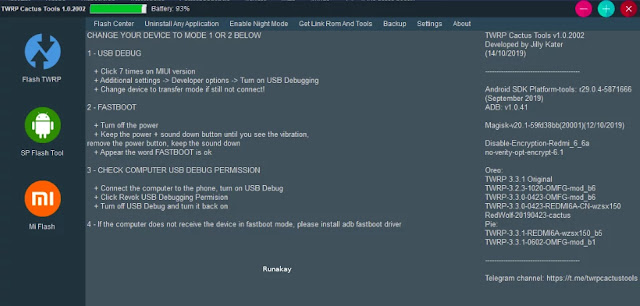
Case: You try to install TWRP Recovery in your Xiaomi Redmi 6A, but the official process doesn't work. Requisites: Xiaomi Redmi 6A phone, USB cable, computer with Windows and TWRP Cactus Tools installed . Steps: Make sure the phone is connected to the computer and in debug mode.  Open TWRP Cactus Tools: Click 'Flash TWRP' and select the right TWRP (be careful with the Android version): Click 'Start Flash' Results: The flash will finish and your phone will have the TWRP recovery.

Fix unauthorized message with adb devices

Image
Case: You connect your Android phone to your computer, run the command 'adb devices' and your device is unauthorized. Even if you authorized the device. Requisites: Android phone, USB cable, computer with Windows and adb installed. Steps: Make sure the phone is not connected to the computer.  Remove the previous authorizations given into the phone. Kill the adb server. Remove the key files. Connect the phone to the computer with the USB cable. Run the command 'adb devices'. In the phone, accept to give the authorization. Results: When you run the command 'adb devices', it will show your devices with the status 'device' instead of 'unauthorized'.

Customizing Notification for Groups in WhatsApp on Android

Image
Case: I'm in a WhatsApp group and I want this group to play a unique sound so it can be easily identified.   Requisites: WhatsApp is installed on an Android smartphone and you have a group to configure. Steps: Open the group and click the 3 dots. Access to the group information.   There, go to 'Custom notifications'. Now you can activate the custom notification for the group.  

Recording the Screen/Window and Audio of Your Computer

Image
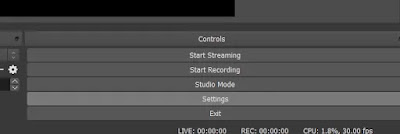
Case: I want to record the screen (or window) and audio (coming from the microphone and the speakers) of my computer in a video file.   Requisites: Open Broadcaster Software (OBS) is installed. Steps: Open OBS. Go to 'Settings'.  Set the 'Recording Path' for the recording and the format to use. Set the video resolution, the base and output resolution must be the same, play with these values if you see that OBS is recording one part of the expected output. Add the video source to record (+), use 'Display Capture' if you want to record the total screen or 'Window Capture' if you want to record only a specific application window.  Create a new source, use the name you want. Select the specific window to record.   Validate in the preview if what you see is what you expect. Start the recording. Stop the recording when you think is the right time.     Go to the output path and you will have the recording ready. ...

Notifying When Battery is Full in Linux

Image
Case: I want to be notified by a sounding popup when the battery of my laptop is fully charged. I'm using Debian Linux and Gnome 3 . Requisites: The following applications are installed: sh, upower, paplay, notify-send. Steps: Open a text editor and put this code (adapted from here ): #!/usr/bin/env bash while true do export DISPLAY=:0.0 battery_percent=$(upower -i /org/freedesktop/UPower/devices/battery_BAT0 | grep -P -o 'percentage: [0-9]+(?=%)' | grep -P -o [0-9]*) if on_ac_power; then echo $on_ac_power if [ "$battery_percent" -gt 92 ]; then paplay /usr/share/sounds/freedesktop/stereo/suspend-error.oga notify-send --urgency CRITICAL "Battery full" "Level: ${battery_percent}% " fi fi sleep 60 # done Save the file with .sh extension in the user's home directory, choice an understandable name, for example: /home/ronald/BatteryCharged.sh ...