Posts

Using Linked Servers in SQL Server

Image
When you work with software you have in mind that everything is interconnected, even more when you're talking about servers. And things could get really ugly if you need to make queries and see that a part of your information is located in another server. Fortunately, Microsoft SQL Server helps us in this situation giving us a feature that allows us to reference a different server and use it to make queries against it. So, let's open SQL Server Management Studio, get in to the server and go to "Linked Servers" folder located in "Server Objects".     Now, you have to create a new linked server by using the right-click button and the appropriate option.   In this ocasion, just type the linked server name on the textbox and select the type of this, keep in mind that you can connect to other sources different from SQL Server.   After you do this, on the "Security" section you have to specify the mapping between users and for the rest of u...

Reducing the Size of PowerPoint Presentations

Image
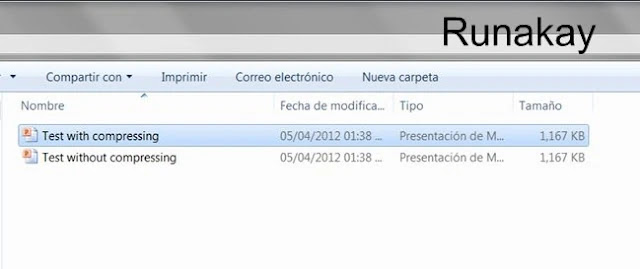
At work it's always required to make presentations in PowerPoint ... but sometimes these presentations have a considerable size that are needed to get smaller. And that is the reason of my next tip, which will help you with your big-sized presentations. I will use a PowerPoint file with 3 images on it and make a copy of it to prove that it's possible to reduce dramatically it size, let me show you the file itself and the 2 equal files that I have created.     Now, I will work with "Test with compressing" file to compress its images, because that's the key. The only thing you have to do is to select one image and go to "Compress Pictures" option which is located within "Picture Tools" ribbon.   Later, in the dialog box shown uncheck "Apply only to this picture" and pick "E-mail (96 ppi)", after that select "OK" button.   At this point the only thing that you have to do is to save you file and you wi...

Separating One Cell Text in Columns with Excel

Image
Many times I asked for punctual information but , in contrast, I received more than I had asked for. For example, I just wanted the name of the applications of a computer, but I got much more in just one column. Therefore, I decided to use one Excel feature named "Text to Columns".   In the window that appears with this option you have to select the characters you are going to use as pattern to separate each row in columns, in this case I selected just "Tab" and got what is shown in the image, as you can appreciate the application descriptions will be in a separated column. Having as a result this. Once you get what you wanted you can proceed to removing extra columns.

Exporting All Installed Applications in Windows

Image
When I helped someone to sell her laptop on internet I needed first to look at what applications were installed in this Windows 7. But, having this list in a file was not an easy task, therefore I searched on internet to get a way to do this. Finally, I used at that moment the command line " wmic " which also allows you to export this list in few formats, always remember first to open your command line window and type the command as shown in the image.     As you can see it's very simple just don't forget to specify the destination path and the format you want your output file (the options are: HTML , Table, XML and more). Once you got your file open it and you will see something like this. If you want to have this file in a more comfortable scheme just do what is said here and it will look like this.   Ready to be used.

Problem Copying Large Path Files

Image
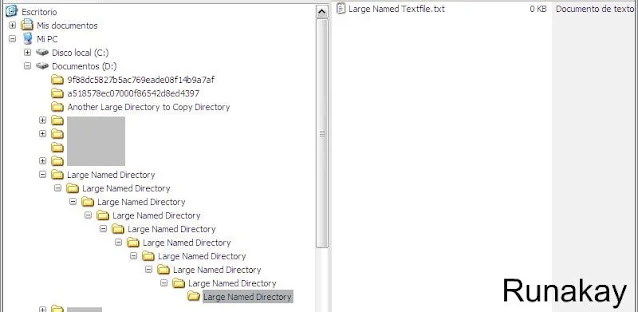
Some time ago I saw one problem as a consequence of a project, this consisted on moving all directories from one network device to an external drive as a backup policy. But, during the copying process happened problems with certain directories and files, an unknown error actually. However, I got the impression that this problem could be produced by the large length of the paths of this directories or files and yes, that was the reason. As a proof of this, I created a large path for a directory that just contains one text file, as you can see "D:\Large Named Directory" has a lot of similar inner directories, having the last one the "Large Named Textfile.txt" file. Pay attention, because it's not possible to create more directories inside the last one, because Windows has a limit... like everything in life.     Now, the image showed before represents the directories in the network drive, and we are going to copy them to a new directory located in the...

Speeding Up your Queries with XPath

Finally I'm posting again, the time has been very tough with me... but I'm here again with one subject that I was thinking to post long time ago. This is something that I found really curious when I was helping someone, this person asked me why in certain part of an stored procedure the programmer used the text() function to improve its execution time. Actually, I didn't have idea at that moment why that function gave that kind of benefit, I mean, we had this: CREATE PROCEDURE [dbo] . [SP_Test] @xml xml AS Insert    Into dbo . temp_table Select    Id1 =           D . Item . value ( 'Id1[1]' , 'bigint' ),          Id2 =           D . Item . value ( 'Id2[1]' , 'int' ),          Text1 =         D . Item . value ( 'Text1[1]' , 'varchar(...

Searching in Multiple Excel Tabs

Image
This is something that I hadn't realized until I helped a partner with an Excel, the problem was with the searching because the results were really unexpected, she selected just a column in the tab "PerĂº" but the searching dialog showed results from "PerĂº" and "Colombia" tabs, really curious, isn't it?. At that moment I thought "this could be very useful when you have a lot of tabs to search in!", so I will show you how to use it. As an example, I will use an Excel with many values corresponding each one to determined country, having at the same time many countries displayed as tabs. The aim of this searching is to find the value 4034220, for this I can use the search all option but I know that this value is only in non-spanish countries, so I just start selecting those country tabs, to do this just click on the tabs you want while pressing "Ctrl" key. As you can see, this tabs will be marked in white color. Once you ha...