Sunday, April 21, 2013

Changing Disk Location in VirtualBox

When we are looking for different kind of operating systems you can think on installing these on your computer, but sometimes you won't use it as usual as you really do with your always-used operating system.

This is my case, I use Linux, Debian specifically, but I bear on mind that Windows will be necessary in some ocassions . Therefore, I decided to install a virtual machine so I won't need to switch between systems which is very annoying.

For doing so It's necessary to have a virtualization software, an application that simulates a virtual PC, where you can install an operating system just like you'll do it on your real computer. As you should imagine there are many of these applications but I prefer VirtualBox for being free.

When you install this software it will help you to configure your virtual machines (yes, you can have many) having as an important step the creation of a virtual disk to be used for the virtual PC, all is happiness when you use the wizard but I needed later to use my virtual disk in another computer so I didn't want to install everything again but to use my previous virtual disk created.

Then, in this situation you first need to have created your new virtual PC, once you have done that you just have to tell to this virtual PC that you'll use the virtual disk from another virtual PC previously created, this is quite easy. First select yout virtual machine, in this case "Remote Desktop" then you pick on "Configuration" button.


Locate the "Storage" section and under "SATA Controller" click on the icon that is show, this icon is for adding a virtual disk.


There will appear a message like this asking you about what disk you are going to set, you pick the button to select a previously created disk.


You pick your disk and it will be attached to your virtual PC, now you just remove the another one to keep just one. The next time you boot your virtual machine it will use the new disk.


Saturday, March 30, 2013

Beginning Task Date Does Not Move in Project

I don't know if you use Microsoft Project as I do, but I have seen many times the case I'll describe next.

Imagine that you have this simple project schedule where all tasks depend each other.


Then, you realize that the subtask 2 is going to last 5 days indeed, so you make this fix and hope the task 3 to begin just when subtask 2 finishes. However, when you do this change the beginning date of task 3 doesn't move, only the final date moves, highlighting new dates.
 

Don't worry, it's not that your project has broken or something like that, the little detail here is that, although you have your tasks set to be automatically programmed, all tasks won't move its dates if there're progress recorded in them.

That's why if you want to have this date moved you must go to task details and clear any porcentage shown.


That's the way to do it, and you will see the task moving according to your changes.


So, you can now moving your dates as you wish, be careful with this because I have seen many project managers that use this trick to hide relays.

Friday, March 29, 2013

Executing SQL Script from Command Line

Yes, It's more pretty your SQL Server Management Studio, because you can just go to "File" option, find there "Open" and click on "File..." to load a SQL file (.sql) to execute it without problems.

But, have you ever tried to do so with a file create by this tool being large enough to freeze it literally when you open it? Well, in this case there's no way to execute that file through the tool.

Therefore, here we are with a SQL Server command that will help us with this task. You just have to keep in mind the command: sqlcmd, simple right?.

Let's say that we have a SQL server called "MY_SERVER" and my SQL instance "MY_INSTANCE" installed there. What I need now is to execute the following script "my_large_script.sql" located at "D:\Test".

It's important to consider that this command use Windows authentication by default, so it's only required to put this line in any command prompt:

sqlcmd -S MY_SERVER\MY_INSTANCE  -i D:\Test\my_large_script.sql

However, if you are using SQL authentication it's neccesary to use your credential in this way:

sqlcmd -S MY_SERVER\MY_INSTANCE  -U domain\my_user -P my_password -i D:\Test\my_large_script.sql

That's all, have fun with your scripts.


Sunday, January 6, 2013

Inserting Rows o Columns in Excel Not Permitted

I'm opening an Excel file and when I try to insert a new row or column I get a message error giving me a large text about how this is not possible. I have seen many people facing this message, although this gives the solution, sometimes it's hard to understand what this message is trying to say.


But, what's happening? Let me tell you that you' re using all the rows or columns of the file, yes, believe it or not you are having information (even blank space) at least at the last row or column allowed. So, when you want to add a new one, Excel tries to delete this row or column because it will be out of range with the new element inserted.

The solution is going to the last column or row, to do so you can use this shortcut: Ctrl + Down arrow if you want to go to the last row or Ctrl + Right arrow to go to the last column, as shown in the images.


Then, you just have to select the entire row or column and delete, the next step is to save the file to to let Excel to detect this change, once you did this you'll be able to add one row or column, if you need more just follow the same procedure but deleting more rows or columns.


Wednesday, September 19, 2012

Fastest Way to Know the Size of Files or Folders


Hi there! this time I'm going to show you a quick way to know the total size of any select files or folders.

My idea is to give a sum up about how this task is accomplished typically so, you first select the elements you want to measure, this by using "Ctrl" key and click over the files or folders without releasing the key.
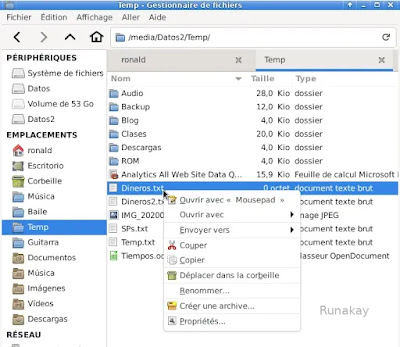
As a second step you click the right button of your mouse and select "Properties" option displayed in the menu.


With the procedure explain lines above you'll finally get here, where you will see the total amount of space used by the chosen elements.


And what is the trick? Well, it's quite simple but I know there are people who may not have acknowledge about this, just use the keys "Alt" and "Enter" and you'll skip the right-clicking thing and selecting "Properties". Yes! just select the elements and press "Alt" + "Enter" to go straight to "Properties" windows.


Monday, September 17, 2012

Linked Images in Sharepoint

Yes! I'm back hahaha at least in this moment, I was and am very busy but I have several posts pending of being published so I will try to publish more frequently.

In this opportunity I had to modify a Sharepoint site, because we are having a new process, so as a way to communicate this a site was designed, where graphically it's shown the new process divided into blocks. 

But, the requirement itself was to have this graphic ready to be clicked with the purpose of sending the user to process block site. Yes, a linked image.


To do so, first, it's necessary to have edit permissions on the site. Second, we have to access to "Content Editor"though "Edit" webpart option and once we have got in there, click on "Rich Text Editor...".
 

You will get something like, in this step you have to pick the image you want to have the link, and select the "Hyperlink" icon.
 

Once you do that, a window will be shown asking you for the URL the image will use to redirect the user, here is where you type the site of this little image and press "OK". 


Following this little step you will have your images linked quickly, having thus a much more nice site for your company.

Tuesday, May 15, 2012

Using Linked Servers in SQL Server

When you work with software you have in mind that everything is interconnected, even more when you're talking about servers. And things could get really ugly if you need to make queries and see that a part of your information is located in another server.

Fortunately, Microsoft SQL Server helps us in this situation giving us a feature that allows us to reference a different server and use it to make queries against it.

So, let's open SQL Server Management Studio, get in to the server and go to "Linked Servers" folder located in "Server Objects".


Now, you have to create a new linked server by using the right-click button and the appropriate option.


In this ocasion, just type the linked server name on the textbox and select the type of this, keep in mind that you can connect to other sources different from SQL Server.


After you do this, on the "Security" section you hace to specify the mapping between users and for the rest of users you'll have to select the connection mode.


Once you finish this, you will be able to query the data from your new linked server, this will appear under the "Linked Servers" folder. Since now you can build this kind of queries:

SELECT * FROM TEMP.CATALOGTEMP.DBO.TEMPTABLE

That's all.